Making a CSV file readable
This article explains how data in an exported CSV file can be made readable in Excel.
Background#
This article explains how data in an exported CSV file can be made readable in Excel.
See this article for a guide on how to export data from a sensor in CSV format.
Making a CSV file readable#
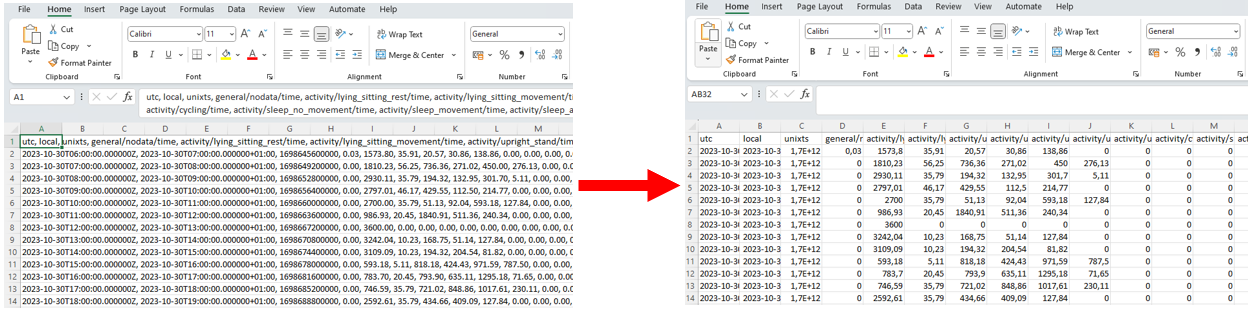
After you have downloaded a CSV file from the web app, it can be opened with Excel. The format of the file is not formatted for readability by default. Some settings need to be adjusted to get an overview of the data. Follow this guide to make these adjustments.
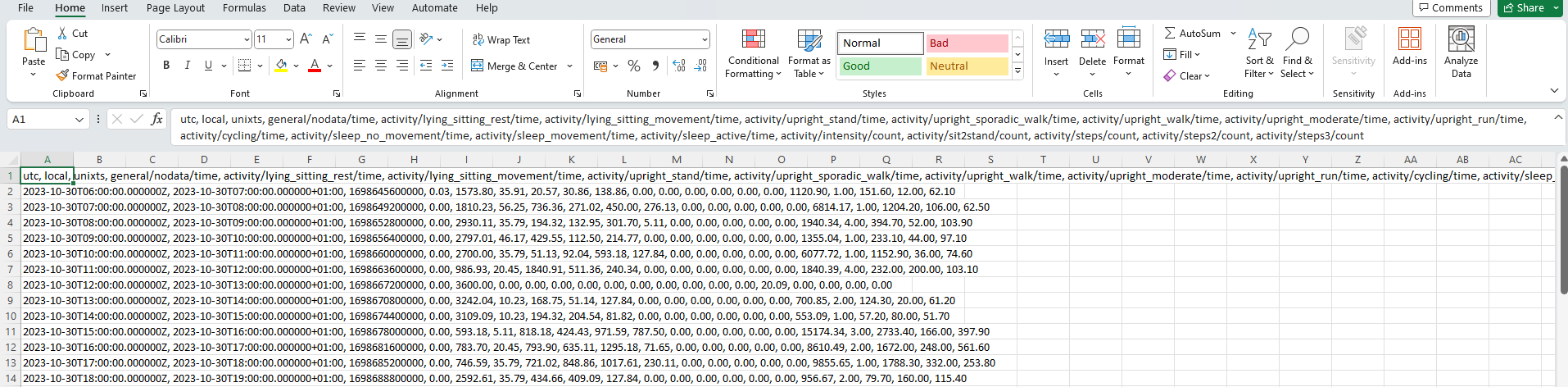
- Locate your CSV file and open it with Excel. When first opened, the file will look like this:
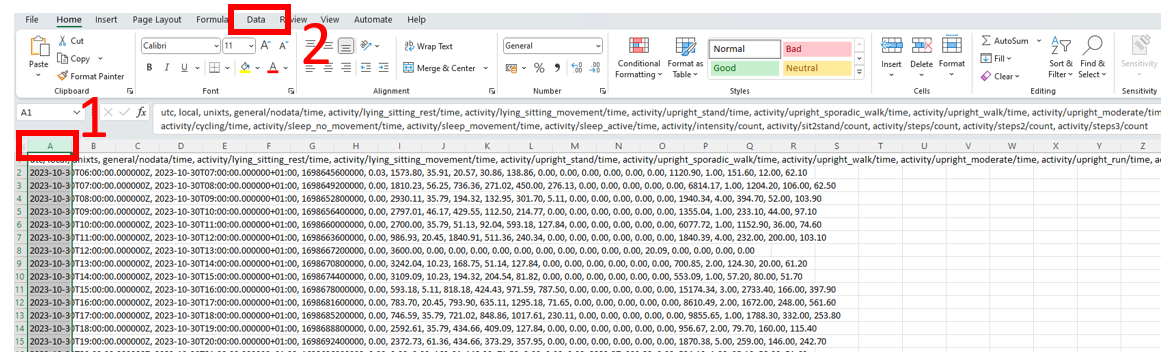
- Mark column A (1) and enter the Data tab in the top menu (Alt + A):
- Select “Text to Columns”. This will open a pop-up modal:

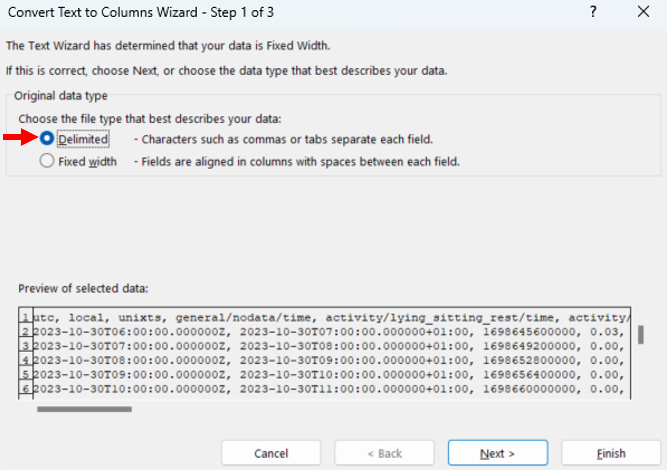
- Select “Delimited” and click “Next”:
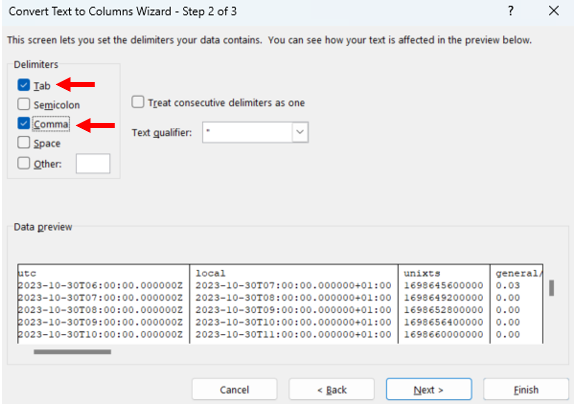
- Tick off “Tab” and “Comma”. Proceed by clicking “Next”:
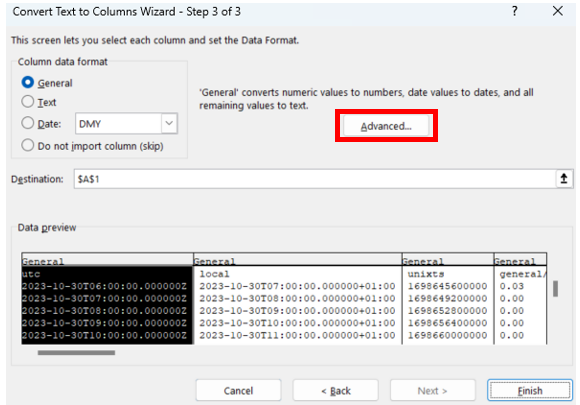
- Click on “Advanced”:
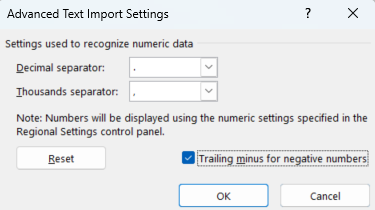
- Set “Decimal separator” to " . " (dot) and “Thousands separator” to " , " (comma). Click “OK”:
- Click “Finish”.
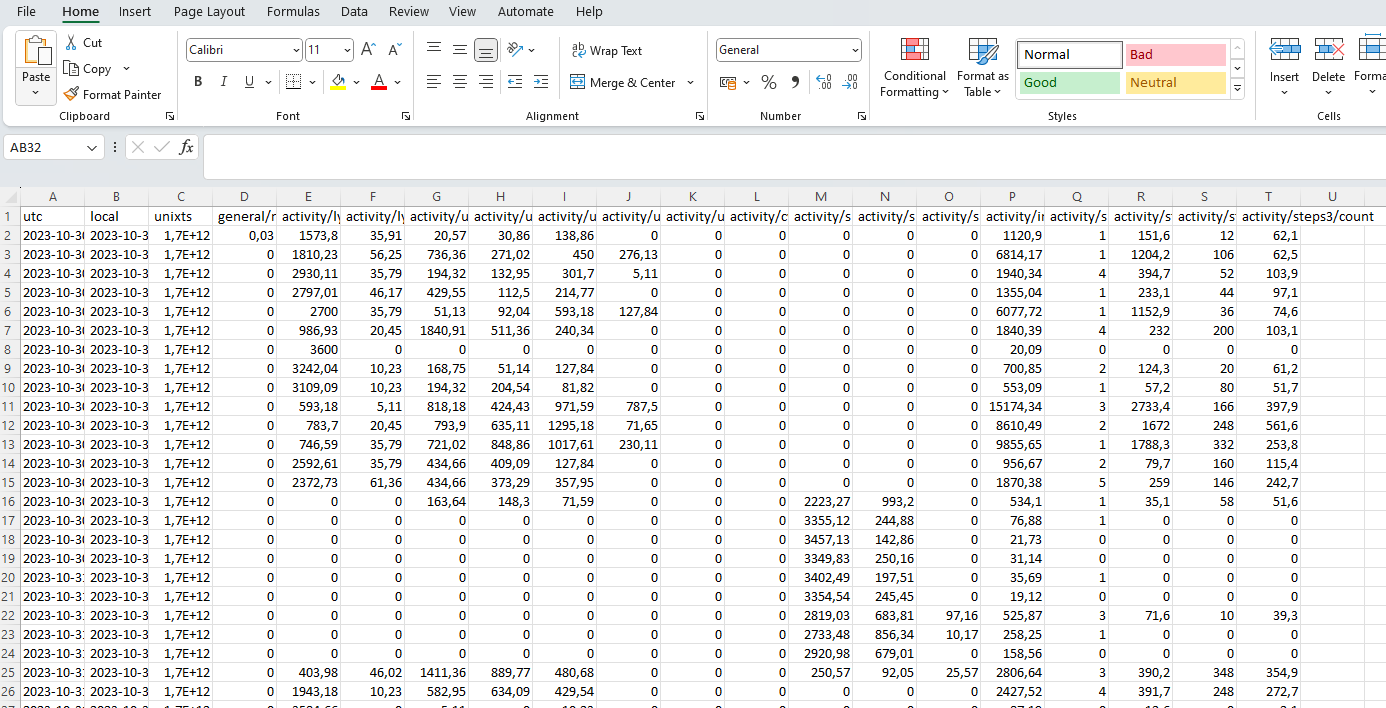
The sheet has now been formatted for better readability and will look like this: